
Assigning and Modifying Roles
Each member of your organization has a role for each product, and that role determines what the member can do in the product. This guide covers assigning and changing those roles from the Members tab of the Organization page.
For what each role includes, see RBAC. To add a new member to your organization, see Inviting Team Members.
Prerequisites
- You must be logged in to app.chain.link.
- You must have a role that can manage member roles:
- The Owner and Platform Admins can manage member roles for all products.
- Product Admins (for example, a CRE Admin) can manage member roles for their product only.
- The member whose roles you want to change must already belong to your organization. If they don't, invite them first: see Inviting Team Members.
You can only set roles for products that you have access to.
Adding or Modifying a member's roles
-
Sign in to app.chain.link.
-
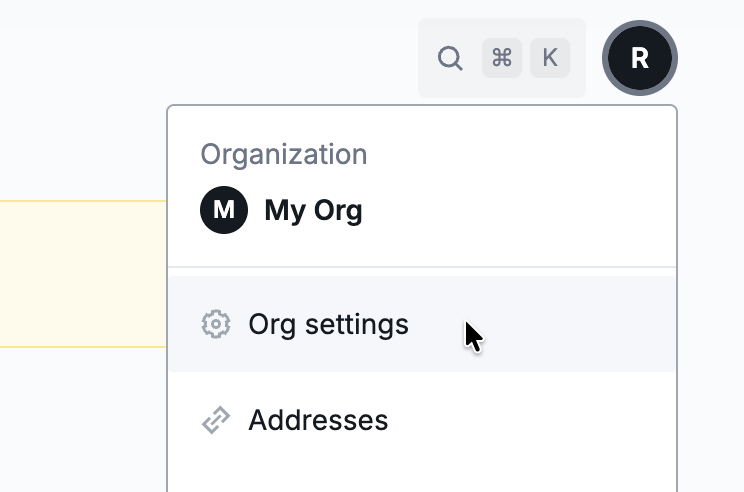
Click your account icon in the top-right corner, then click Org settings to open the Organization page.
-
Open the Members tab. It lists every member of your organization.

-
Click the member's name to open the Edit member form.
-
On the Roles tab, open the dropdown next to a product and select the member's role for that product. The roles available in each dropdown depend on the product:
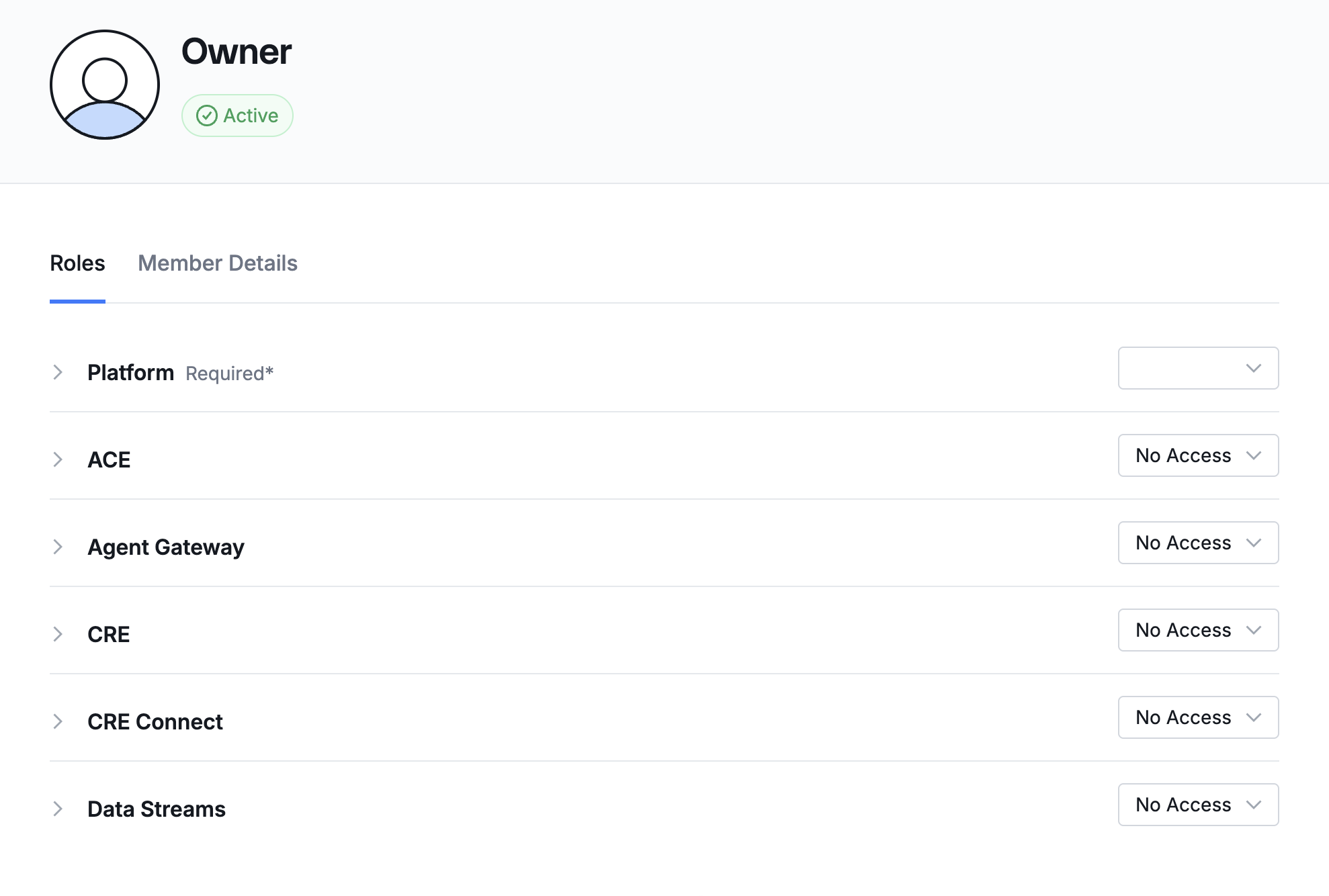
Product Available roles Platform Admin, User ACE Admin, Operator, Viewer, No Access CRE Admin, Developer, Viewer, No Access CRE Connect Admin, Operator, Viewer, No Access Data Streams Admin, No Access Set a product to No Access to remove the member's access to that product. The Platform role is required and has no No Access option.
-
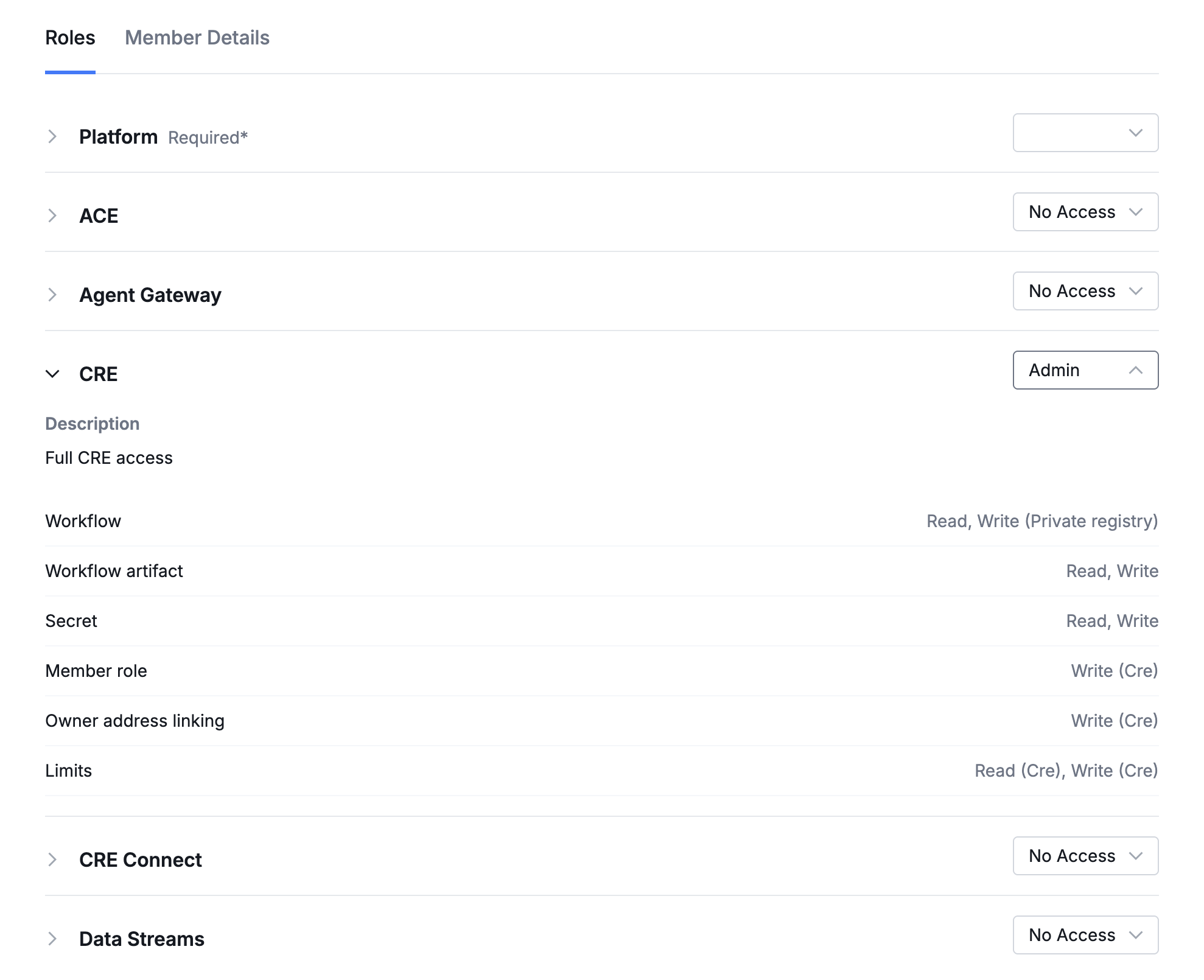
To preview what a role grants before saving, expand the product's accordion. It shows the role's description and the permissions the role includes, grouped by service. Products set to No Access show No role selected.
-
Click Save changes to save your changes.
Related
- RBAC - See what permissions each role includes for every product.
- Inviting Team Members - Add new members to your organization.
-
API Keys - Give applications scoped permissions instead of member roles.